
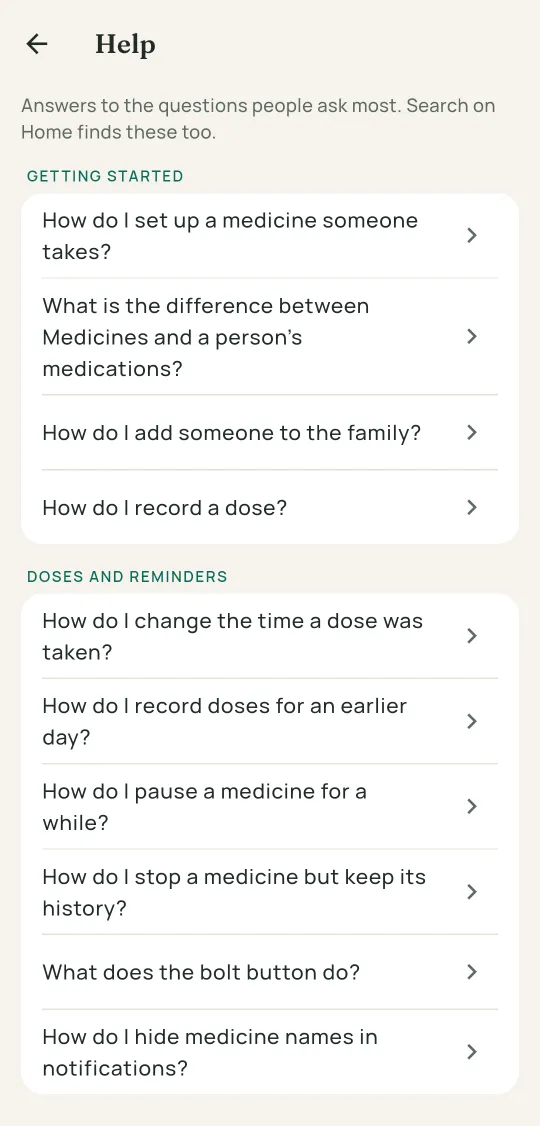
Help
Getting started
How do I set up a medicine someone takes?
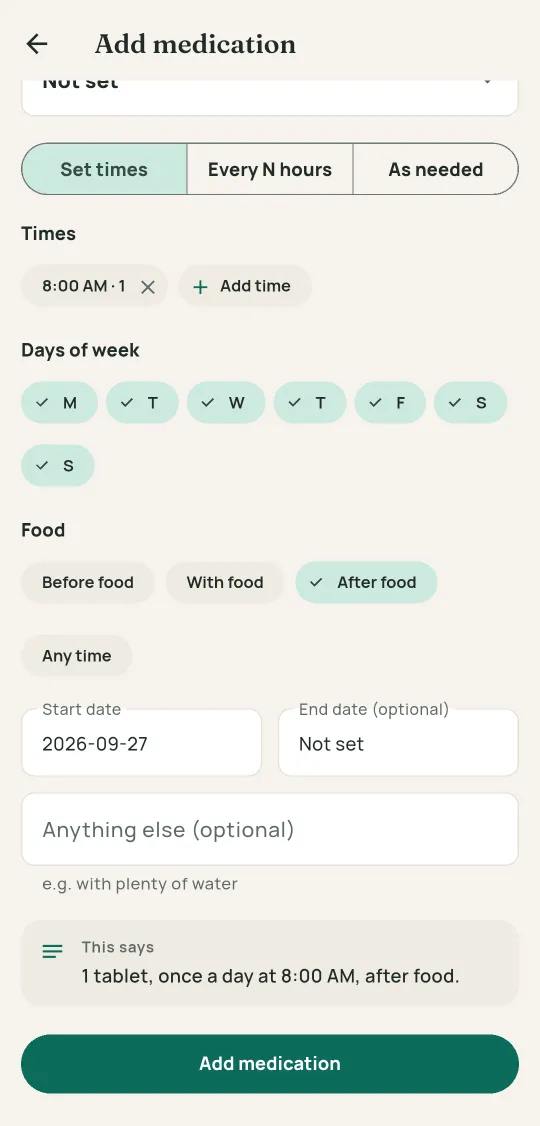
A schedule is what turns a medicine into reminders, a dose ring and a history.
- Open the Family tab and tap the person who takes it.
- Under Medications, tap Add medication. If they already take something, tap View all first.
- Choose the medicine, or tap + beside the list to add a new one.
- Say how much and when, the way the doctor put it. The sentence at the bottom reads it back so you can check it.
- Tap Add medication to save.
Adding a medicine from Home or the Medicines tab asks who takes it and opens this same form.
What is the difference between Medicines and a person's medications?
The Medicines tab is the household cabinet. A person's medications are the schedules they follow.
The cabinet holds each medicine once, with its stock, expiry and photos. Roost warns you when stock runs low.
A schedule links one person to a medicine with an amount and times. Reminders, the dose ring and the report all come from schedules.
Recording a dose takes it out of the cabinet stock, so two people on the same medicine count down one shared supply.
How do I add someone to the family?
Each person gets their own colour, records and emergency card.
- Open the Family tab.
- Tap + at the top.
- Fill in their name and relationship, then tap Add member.
How do I record a dose?
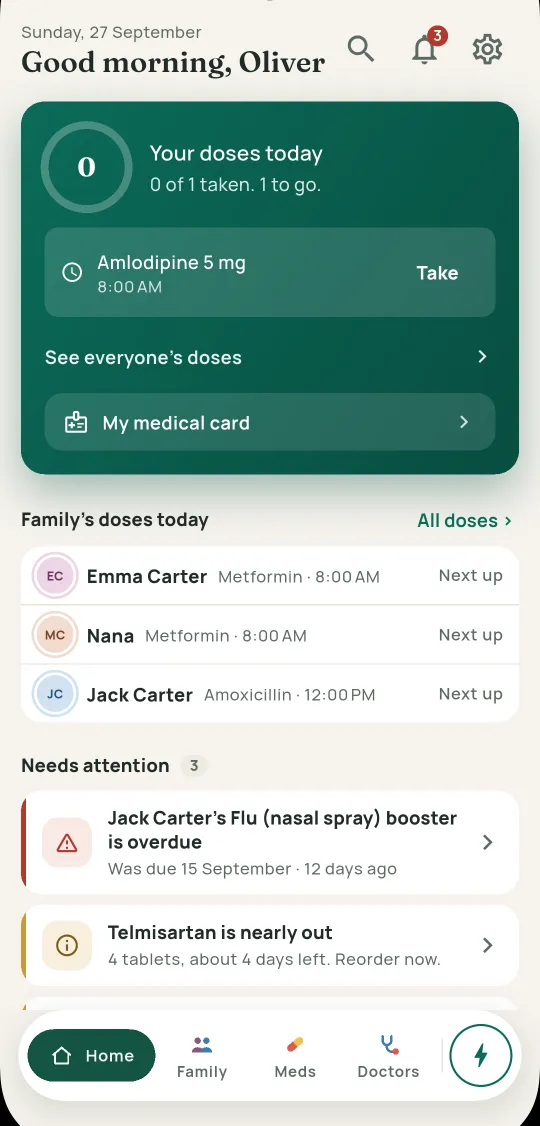
Any of these marks a dose as taken and counts down the stock.
- On Home, tap Take beside your next dose.
- Or open Today from See everyone's doses on Home, and tap Take on anyone's dose.
- Or tap Taken on the reminder notification itself.
- A dose that was missed on purpose gets Skip on Today, with a reason if you like.
Snooze 10 min on a reminder brings it back shortly. Tapping the notification opens Alerts at that dose.
Doses and reminders
How do I change the time a dose was taken?
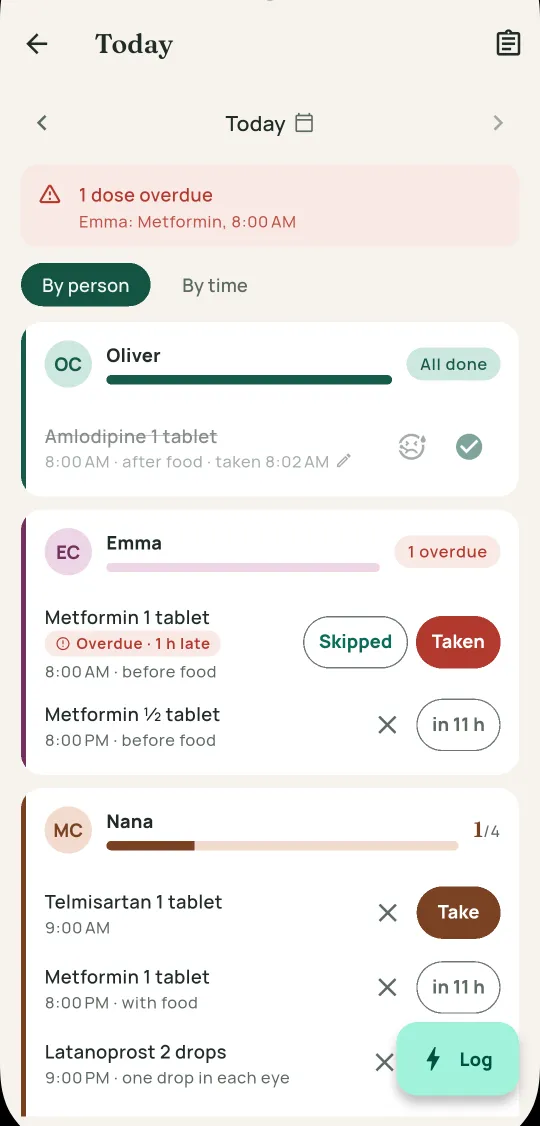
Today and yesterday can be corrected with one tap.
- Open Today.
- Tap the time beside the taken dose, the one with a pencil.
- Pick the time it was really taken.
For two or more days ago, tap ⋮ on the dose and choose Adjust time.
How do I record doses for an earlier day?
Today goes back as far as the schedule does.
- Open Today.
- Tap the arrow left of the date to go back a day, or tap the date to pick one.
- Yesterday works just like today. For older days, tap ⋮ on a dose and choose Mark as taken or Mark as skipped.
Back to today at the top returns to the current day.
How do I pause a medicine for a while?
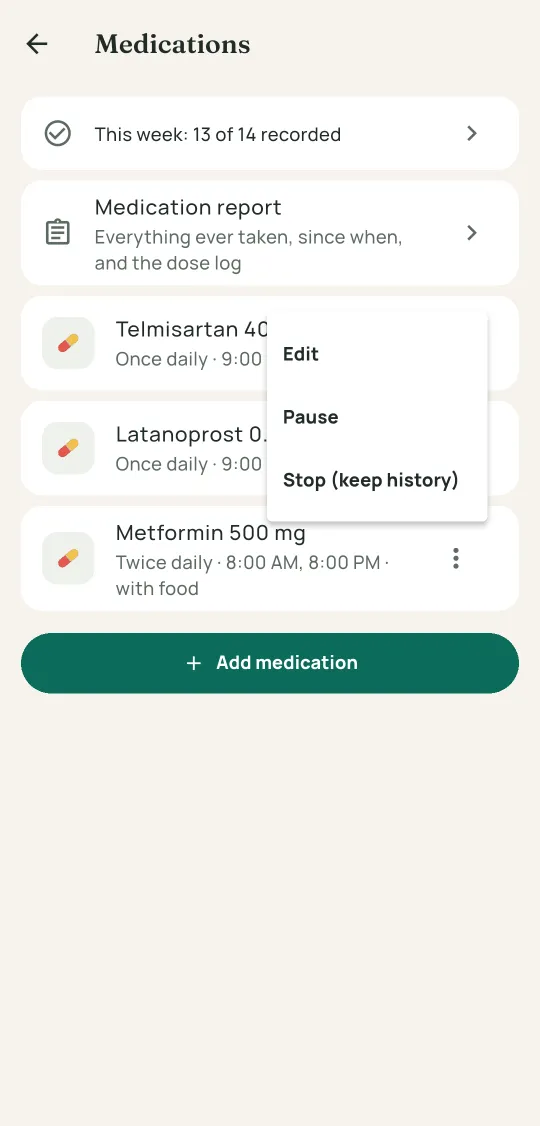
For "stop it for a week before the operation". The schedule and history stay in one piece.
- Open the person's page from the Family tab.
- Under Medications, tap View all.
- Tap ⋮ beside the medicine and choose Pause.
- Pick Until a date or Until I resume.
No reminders arrive while it is paused. To end the pause early, choose Resume now from the same menu.
How do I stop a medicine but keep its history?
Stopping ends the reminders. Nothing recorded is lost.
- Open the person's page from the Family tab.
- Under Medications, tap View all.
- Tap ⋮ beside the medicine and choose Stop (keep history).
Stopped medicines live on in the Medication report, which opens from the person's Medications section or the report icon on Today.
What does the bolt button do?
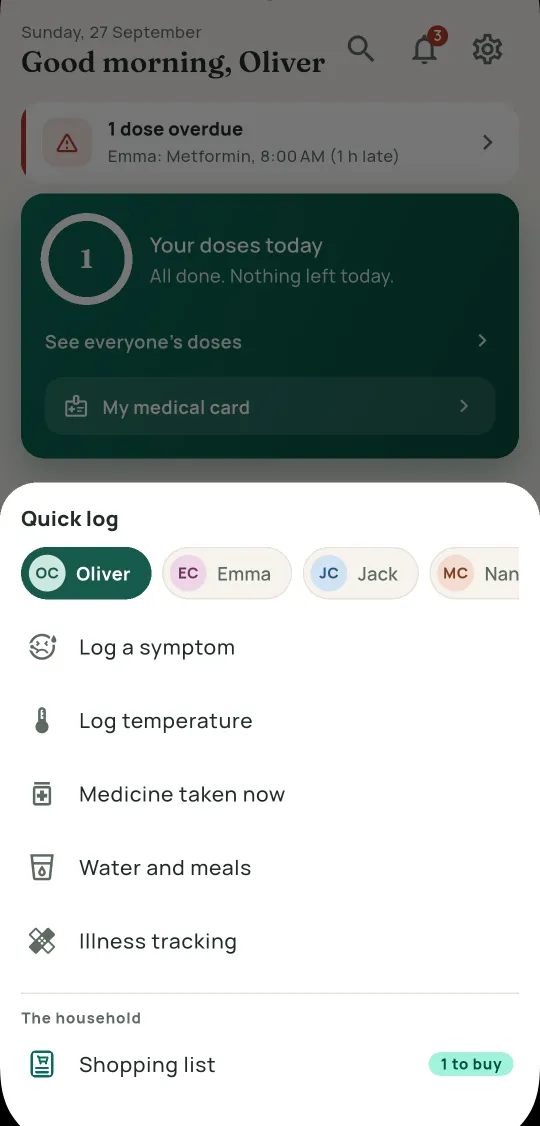
It logs everyday things in two taps, for anyone, from any tab.
- Tap the bolt at the right end of the tab bar. On a tablet it is Log in the side rail.
- Pick the person at the top.
- Choose Log a symptom, Log temperature, Medicine taken now, Water and meals or Illness tracking.
Trackers with a reminder show up here too, and so does the Shopping list.
How do I hide medicine names in notifications?
Reminders can stay private on a phone other people see.
- Open Settings from the gear on Home.
- Under Reminders, tap Discreet notifications.
- Choose Hide on lock screen, or Always generic to show counts only.
The home-screen widget follows the same setting.
Health records
How do I log or delete a reading?
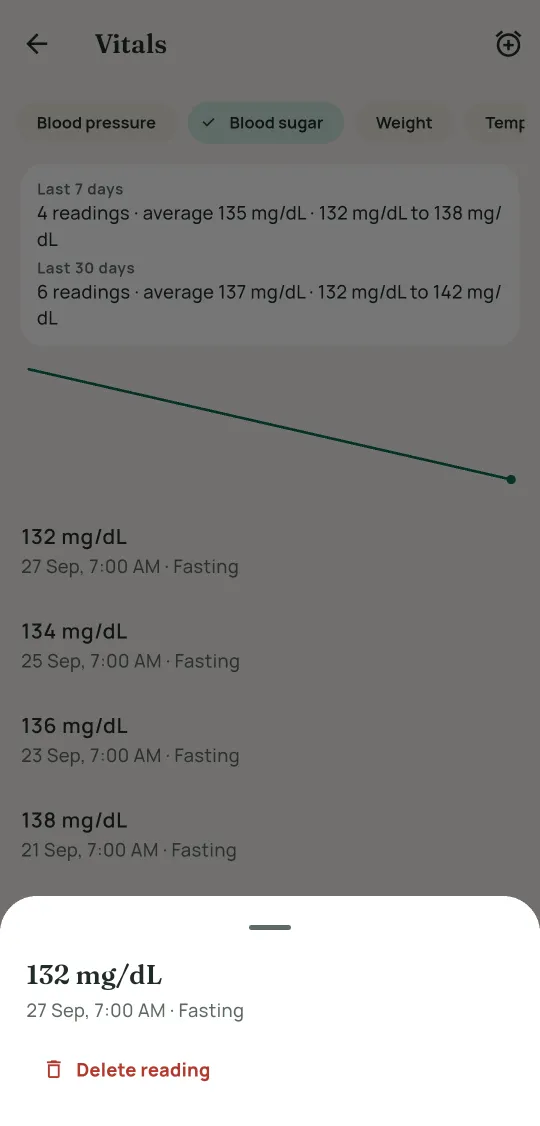
Blood pressure, sugar, weight, temperature, oxygen and more.
- On Home, tap Log a reading for yourself, or open someone's page and tap one of their vitals.
- Pick the kind of reading, then tap the Log button at the bottom.
- To delete a reading, tap it and choose Delete reading, or swipe it to the left.
The alarm at the top of the screen sets a daily reminder to measure.
How do I scan a prescription or a report?
Take a photo, say what it is, and it files itself.
- On Home, tap Scan a document.
- Take the photo.
- Choose what it is, such as Prescription, Lab report or X-ray.
Prescriptions link to medicines and a doctor. Everything else goes to Documents on the person's page. For someone else, open their page and use Documents or Prescriptions.
Search finds documents by title, category and notes, not by the words inside the photo.
Can I track something Roost does not have?
Trackers record anything else, like INR, peak flow or a pain score.
- Open the person's page.
- Next to Trackers, tap Add.
- Name it, and choose whether it records a number or a checkmark.
Visits and emergencies
How do I prepare for a doctor's visit?
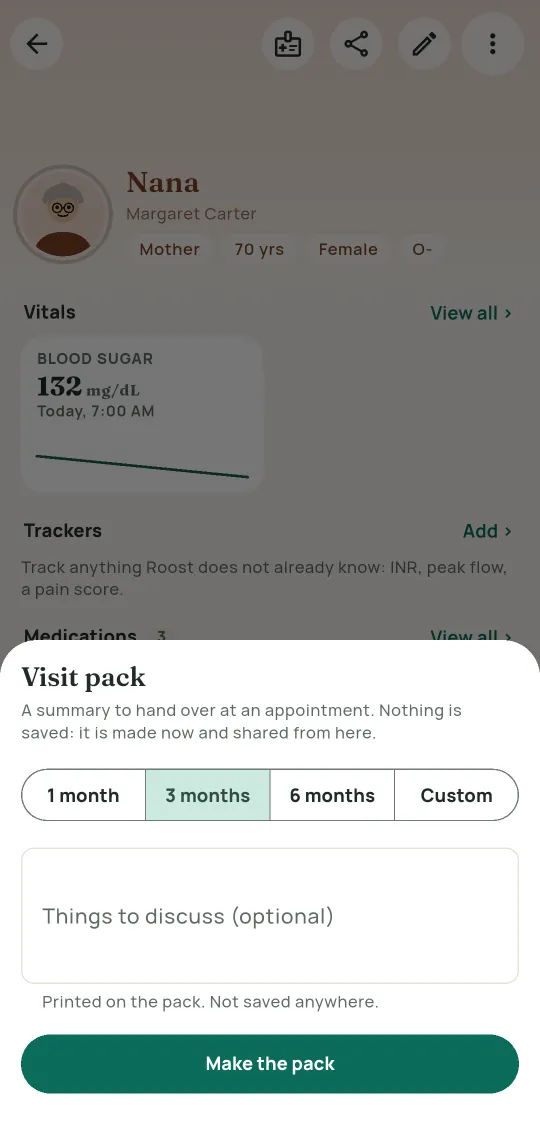
A visit pack puts medicines, readings, symptoms and your questions into one PDF.
- Open the person's page.
- Tap ⋮ at the top and choose Visit pack.
- Pick 1 month, 3 months, 6 months or Custom.
- Add anything under Things to discuss, then tap Make the pack.
Show it on screen in the consultation, or share the PDF.
How do I fill in and share an emergency card?
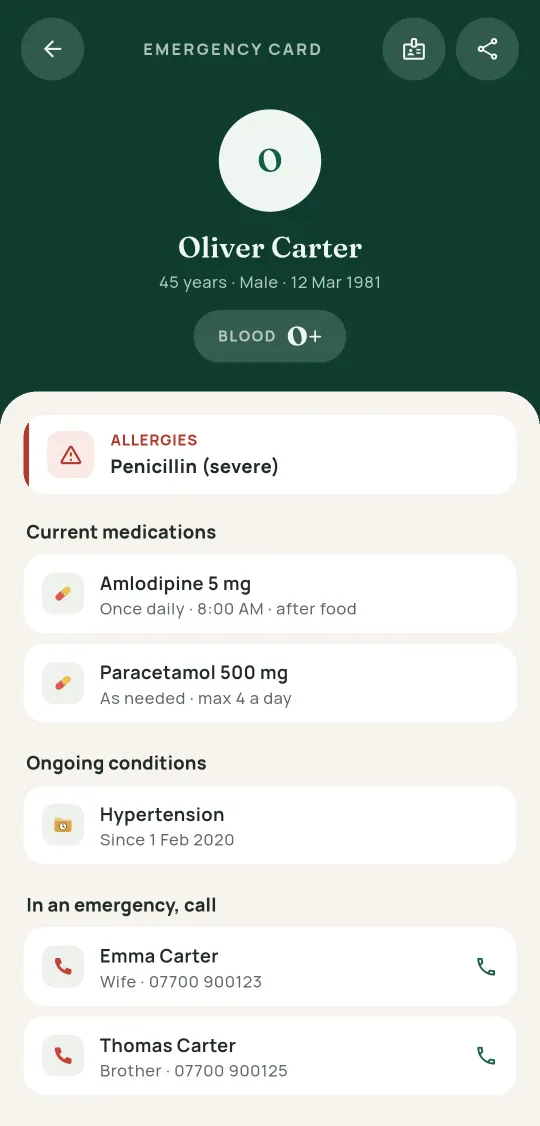
The card fills itself in from what is already on the person's page.
- Tap My medical card on Home for yours, or the Emergency card icon at the top of anyone's page.
- Add allergies, a blood group and emergency contacts on the person's page, and the card shows them.
- Tap the share icon for a PDF, or the badge icon for a wallet card to print.
How do I open emergency cards without unlocking?Android
The launcher shortcut opens the cards in two taps.
- Long-press the Roost icon on your home screen and tap Emergency.
- With the app lock on, allow it first in Settings > App lock and screenshots > Emergency access without unlock.
- Choose which profiles it may show.
Anyone holding the phone can then read those cards. It shows the cards and a way to call, nothing else.
Where are the first aid guides?
Offline guides, each starting with when to call for help.
- On Home, tap First aid.
- Pick a topic.
- First aid kit at the top keeps track of what is in your kit.
Home and your phone
How do I add the Roost widget?Android
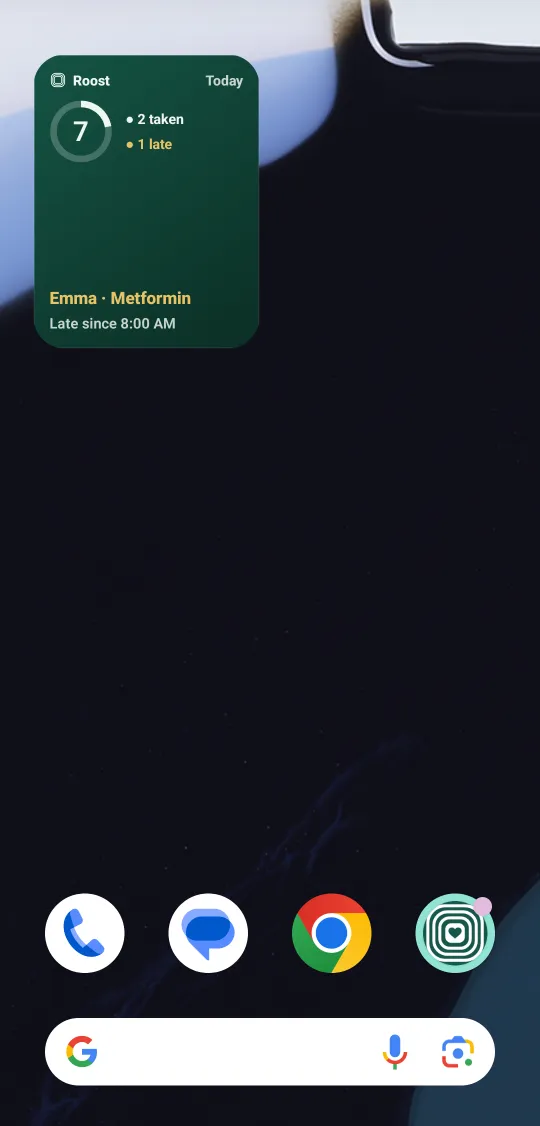
Today's doses on your home screen, without opening the app.
- Touch and hold an empty spot on your home screen and tap Widgets.
- Find Roost and drag it into place.
- Stretch it wider for one line per person.
Tapping the widget opens Today. It follows the Discreet notifications setting.
Can I change what Home shows?
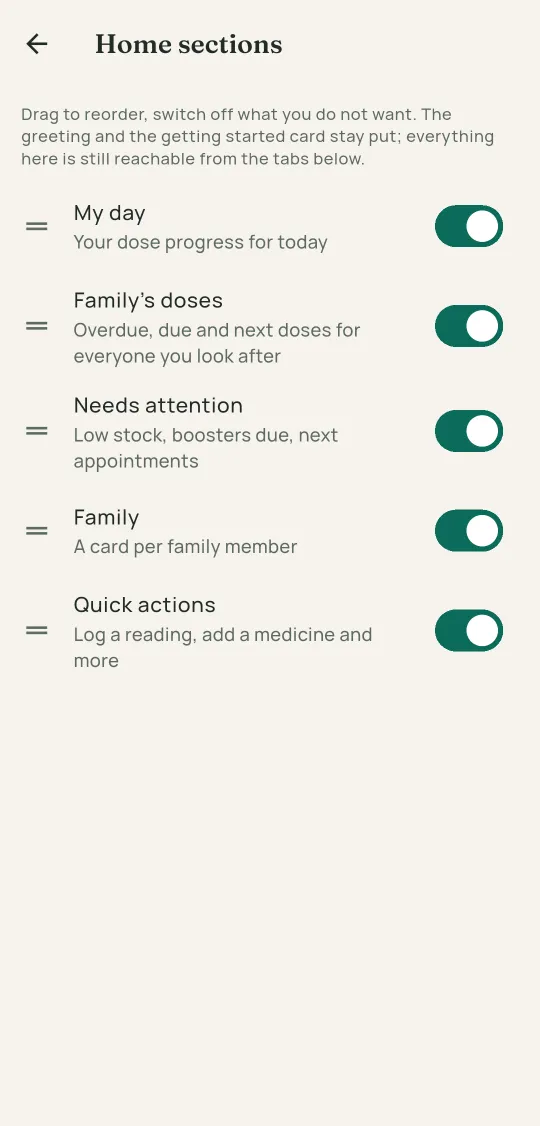
Hide the sections you do not use, and put the rest in your order.
- Open Settings from the gear on Home.
- Tap Home sections.
- Switch sections on or off, and drag the handles to reorder them.
How do I find a record?
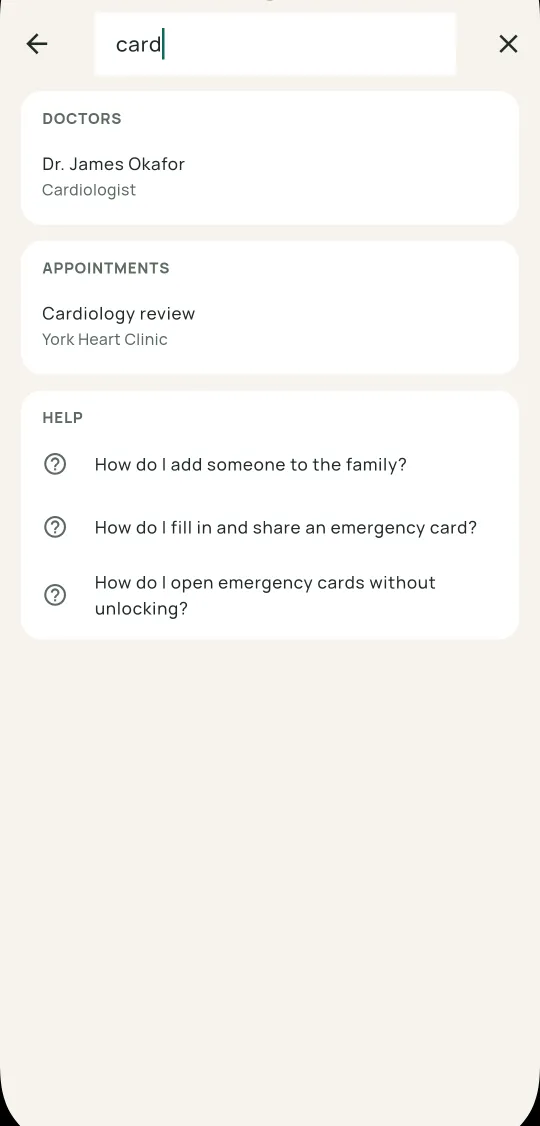
One search covers the whole household.
- Tap the magnifier at the top of Home.
- Type at least two letters.
It searches people, medicines, doctors, documents, prescriptions, appointments, history, symptoms and these help pages.
How does the shopping list work?
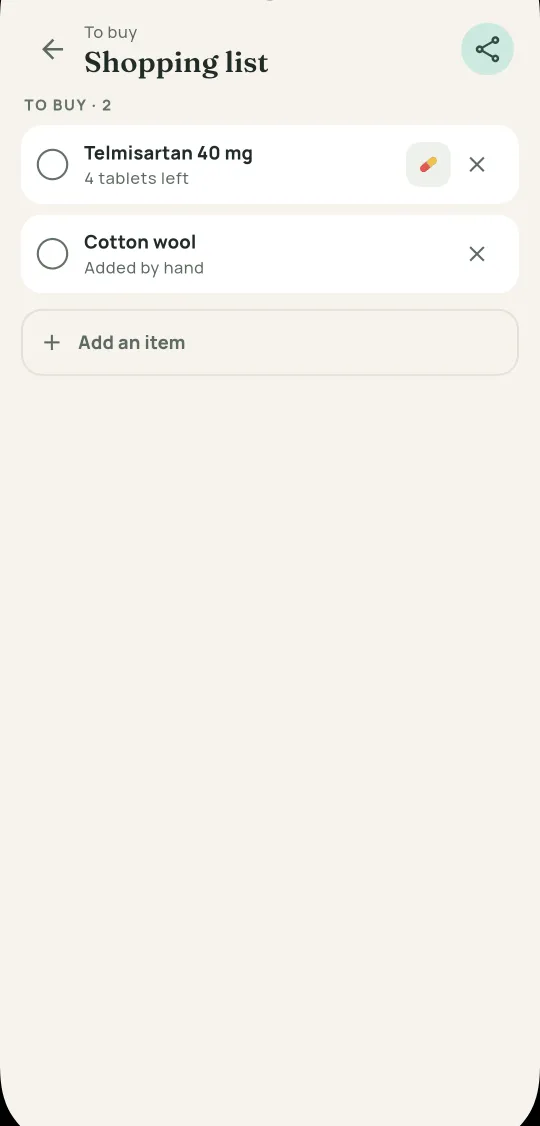
Low stock lands here in one tap, and buying tops the cabinet up.
- Open it from the bag icon on the Medicines tab, or from the bolt button.
- Tap an item to tick it off, then tap Update stock to add what you bought.
- Tap × to remove an item, or Clear to remove everything ticked off.
Can Roost read my watch or scale?Android
Through Health Connect, into your own profile.
- Open Settings, then Health Connect.
- Tap Connect and allow the readings you want.
Roost reads blood pressure, blood sugar, weight and oxygen. It never writes anything back.
Privacy and backup
How do I lock the app?
A PIN, and a fingerprint if you like.
- Open Settings, then App lock and screenshots.
- Turn on App lock and choose a PIN.
- Turn on Unlock with biometrics to use your fingerprint too.
How do I back up, or move to a new phone?
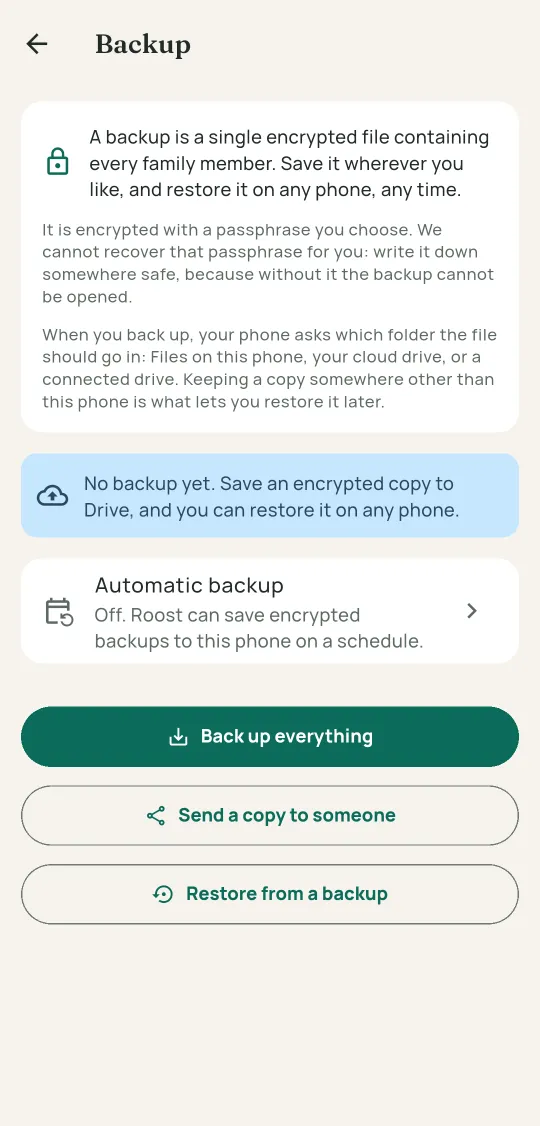
Everything lives on this phone, so a backup is the only copy anywhere else.
- Open Settings, then Back up and restore.
- Tap Back up everything and choose a passphrase. Nobody can recover a forgotten passphrase, us included.
- Keep the file somewhere other than this phone.
- On a new phone, install Roost and tap I have a backup, restore it on the first screen.
Automatic backup on the same screen keeps recent copies on the phone. Copy one somewhere else from time to time.
How do I give someone else one person's records?
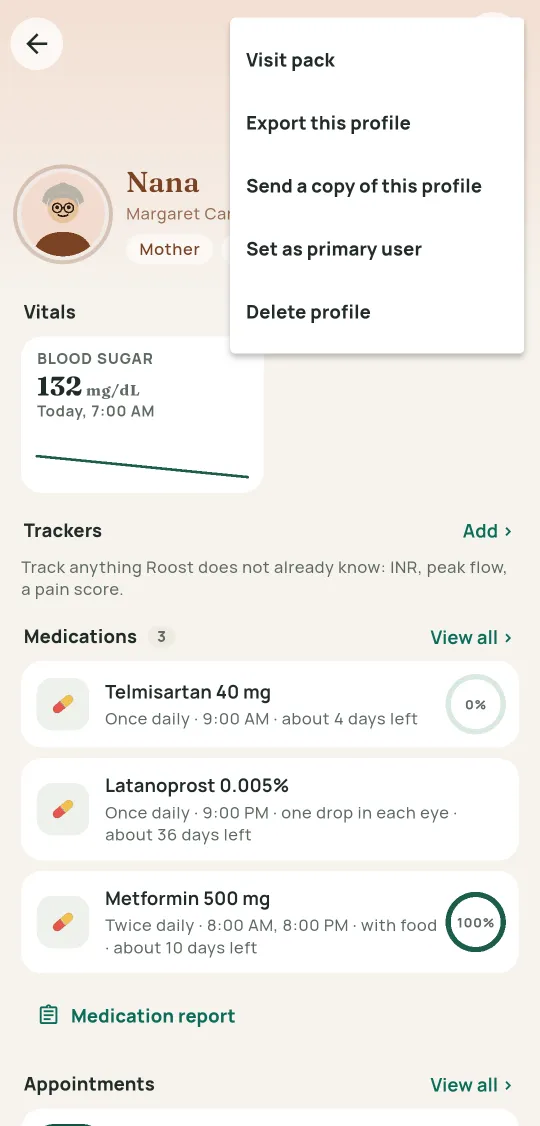
Send a single profile to another phone running Roost.
- Open that person's page.
- Tap ⋮ and choose Send a copy of this profile.
- Choose a passphrase and send the file.
- On their phone, they open the file, or use Restore from a backup in Settings > Back up and restore, and enter the passphrase.
The profile is added beside their own family, and nothing of theirs changes without asking first.
Still stuck?
Write to roost@appsinventor.com. Please leave out personal health details.